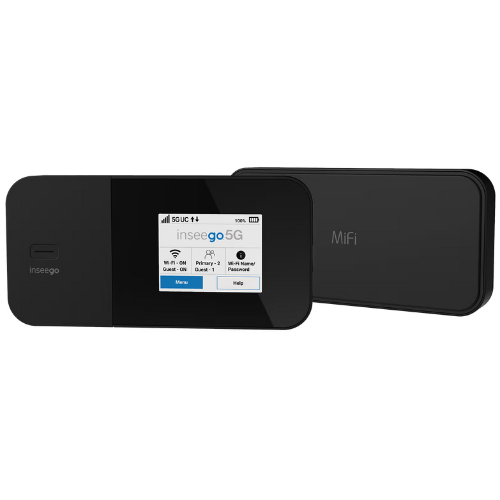
Device Instructions
 0:31
0:31
 0:43
0:43
 0:43
0:43
 0:19
0:19
 1:14
1:14
 1:00
1:00
 0:54
0:40
0:54
0:40
MiFi Device Overview
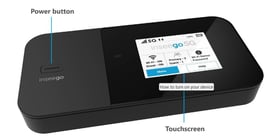
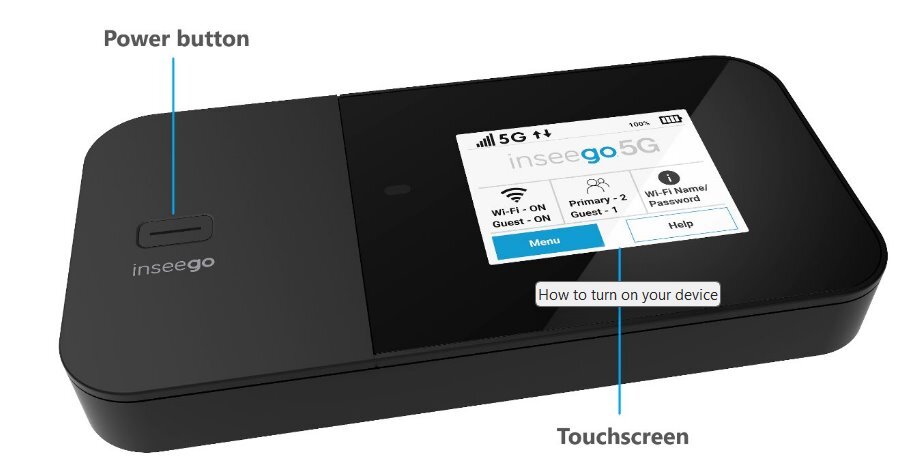
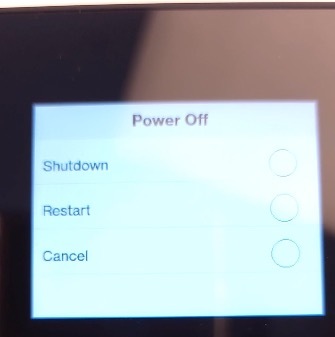
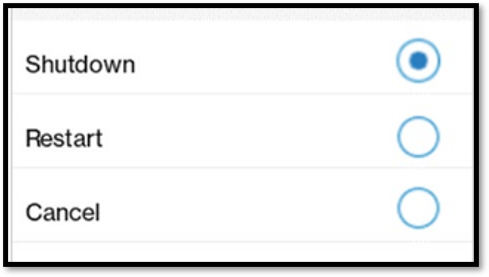
- Press and hold the Power button for threeseconds to turn your MiFi X PRO 5G on and off.
- To conserve battery power, the touchscreentimes out or sleeps when you are not using it andthe LED on the power button blinks slowly as asign of life.
- To wake up the display, press and release thePower button. (If there are no connected devicesor no activity for two hours, the MiFi shuts off.
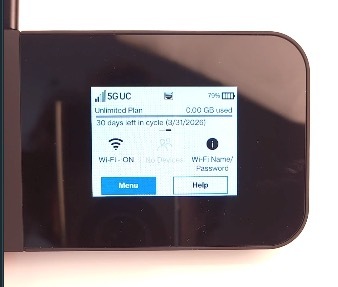
- The touchscreen displays and allows you to viewWi-Fi name and password, connected devices, data usage, and more.
- Swipe through screens and tap the arrows, buttons, and icons to access available menu options.
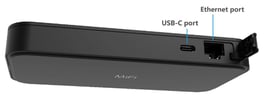
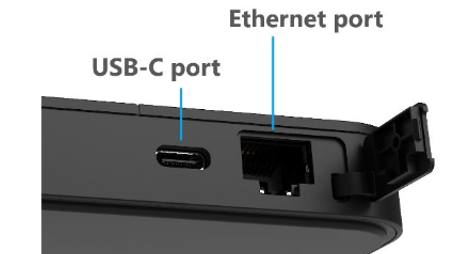
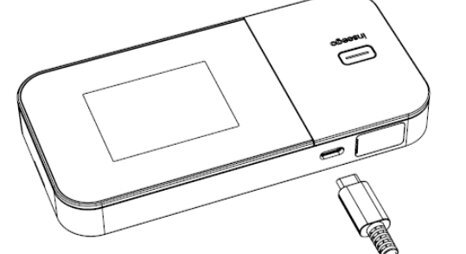
- Use the USB-C port to connect to the QuickCharge charger or tether to a device.
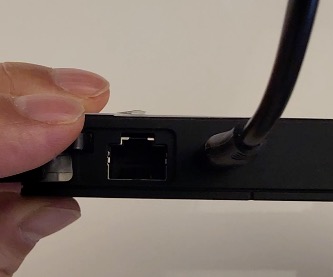
- Use the Ethernet port to connect a device directly to the internet
How to turn on your device
Your Inseego Mifi Pro X 5G device arrives fully activated with SIM card installed. You just need to turn it on!
-
Make sure your power is plugged in using provided wall charger and cable.
-
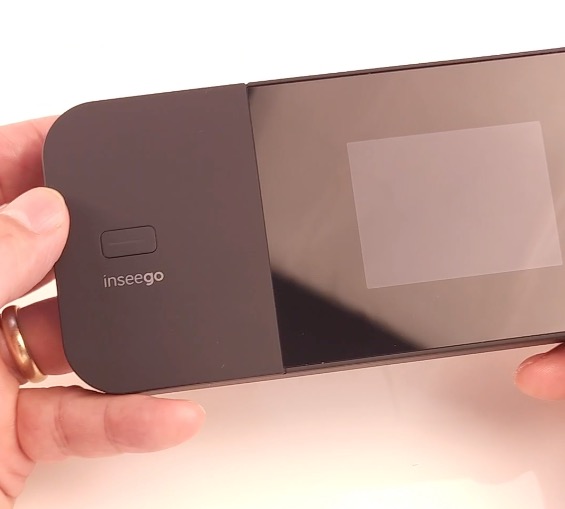
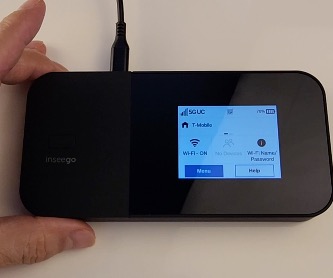
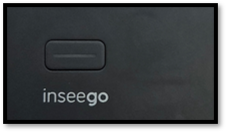
Locate the power button above Inseego logo.
-
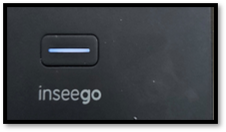
Press and hold (3 seconds) until button lights blinks.
-
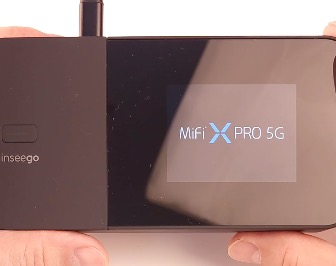
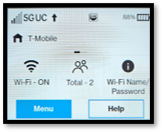
The screen will display: (1) Mifi X Pro 5G Logo (2) T-Mobile logo (3) Loading Icon (4) Home touch screen.
-
You are ready to connect your devices to Mifi X Pro and be online!


How to connect your devices
Like any other Wi-fi connection, your device needs to select an available network and enter password
-
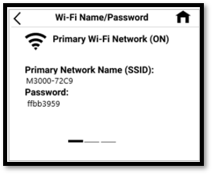
You can find Mifi’s Wifi Name and Password by pressing Wi-Fi Name/Passwor icon.
-
The screen will show Network Name which will show up on your device’s Available Network when you are connecting to Wifi.
-
Select Network Name displayed on your Mifi screen. (Ex M3000-3EE) Enter the password (Ex. 3fd43540) That’s it. You are connected to Home Wifi!
-
More help on connecting different devices go to https://www.tmobile.com/support/tutorials/device/inseego/mifi-x-pro-5g


Finding your Wi-Fi name and Password
 on the Home
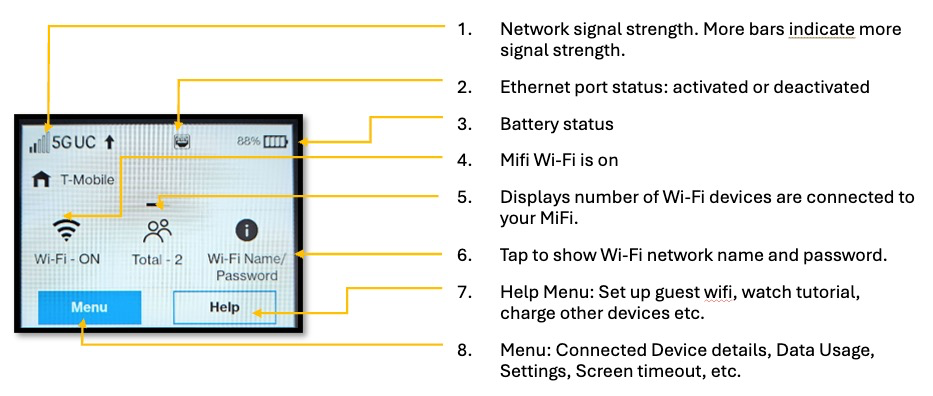
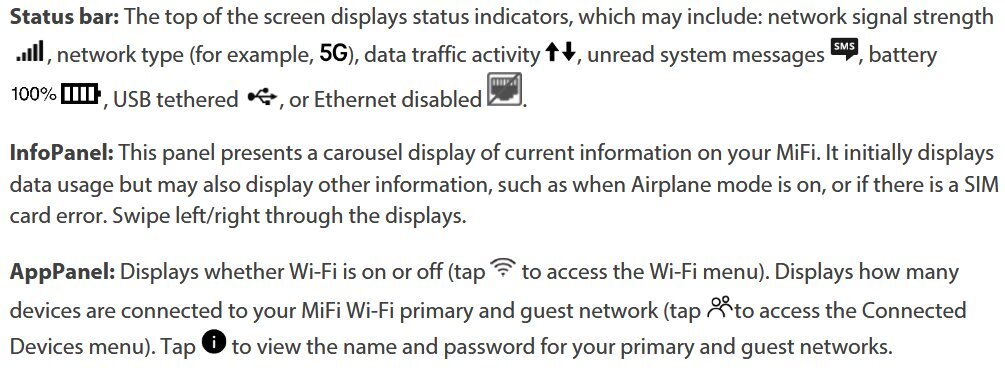
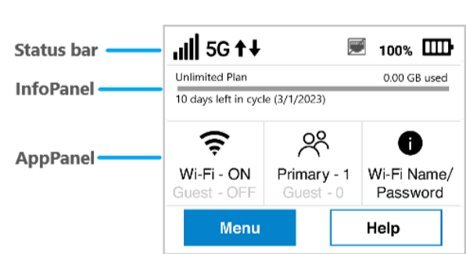
What’s on your Main Screen
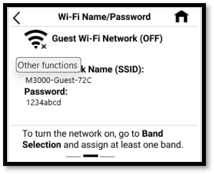
Other functions
Connecting devices with Ethernet
You can connect wired devices such as laptops, printers, and gaming consoles via Ethernet.
NOTE: The Ethernet port is disabled by default to optimize battery life. You can enable it from the touchscreen (Menu > Settings), or from the Admin web UI (Settings > Preferences).
1. Plug one end of an Ethernet cable into the Ethernet port on your MiFi.
2. Plug the other end of the cable into the Ethernet port of the device you wish to connect.
Charging with Quick Charge Charger
Changing your password or wifi network name
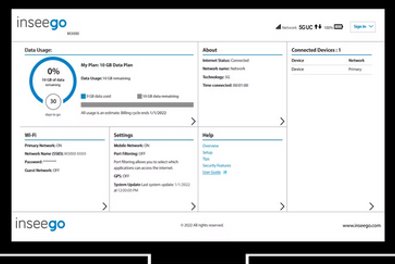
To change your password, you must download Inseego Mobile App or connect to your MiFi device by going to https://my.mifi from your browser and sign in using your Admin password which is your default password.
Unless you really need to change your password which is unique to each device, we recommend keeping the default password. For detailed instruction on changing your password. Please see https://www.tmobile.com/support/tutorials/device/inseego/mifi-x-pro-5g/topic/connections-amp-network/change-wireless-password
Recources
- T-Mobile Device Support
- Inseego Migi X PRO 5G User Guide Download
30-Day Risk-Free Trial
Try HomeWifi30 for 30 days with zero risk.
If you’re not satisfied, simply return the device — Free shipping including return.